Start with the handoff. Does the other person need a quick update, a walkthrough or a report they can act on? That is a better starting point than buying another tool for every message.

Slack clips: keep the update in the conversation

Slack clips let you post audio, video and screen recordings in a channel or direct message. Viewers can use captions or read the transcript. This fits a short explanation when the team is already discussing the work in Slack. See Slack’s clips page.
Loom: send a walkthrough as a link

Loom records screen and camera through its desktop app, browser extension and mobile app. Sharing, captions and comments sit around the video. It is worth considering when the video link is the main handoff. See Loom’s product page.
Moonshot: record on Mac, then review the draft

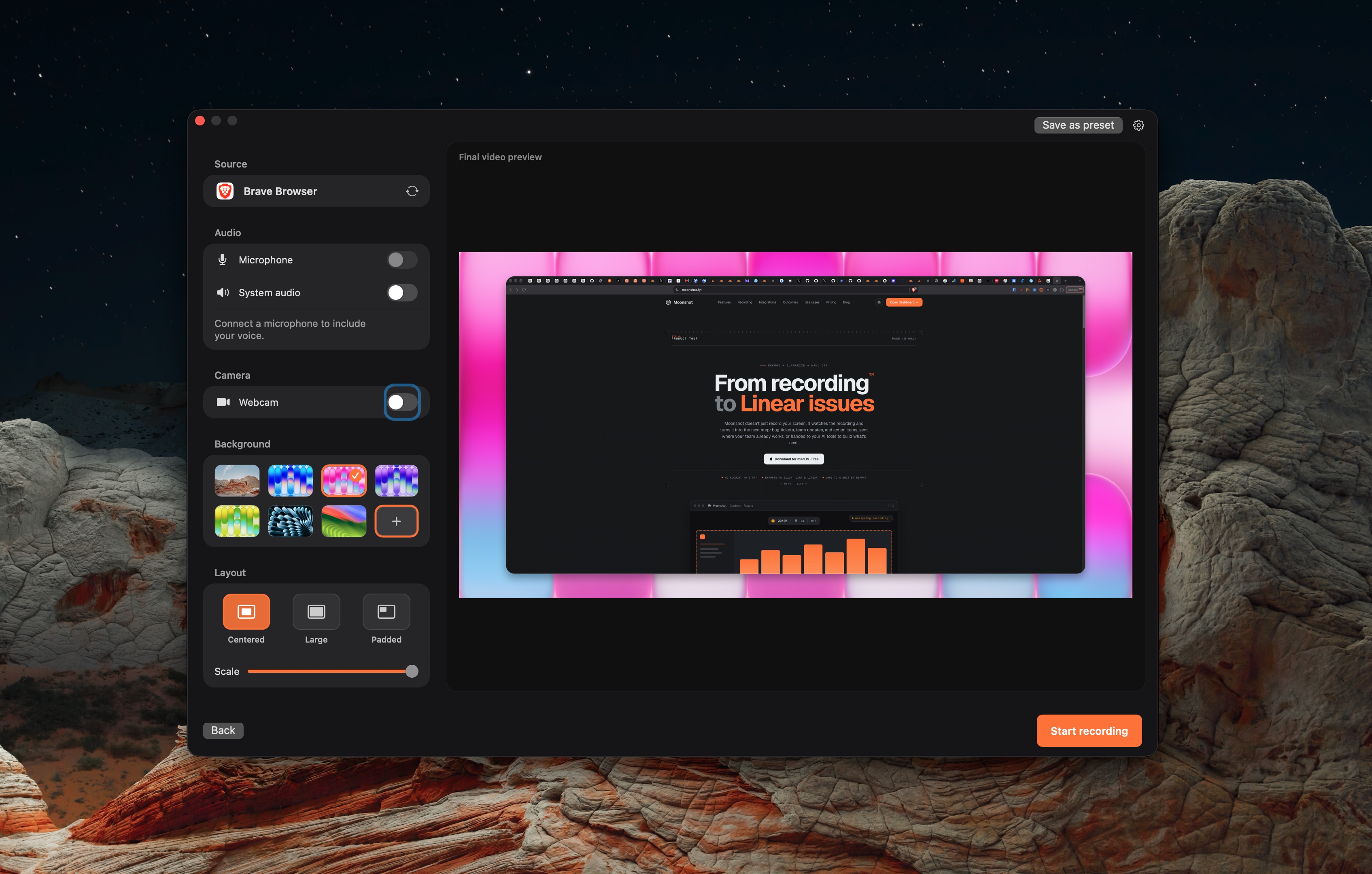
Moonshot records a window, area or screen on Mac. You can keep the file locally or sign in to share it. On Pro or Team, transcript-based AI actions can draft a recap, action items or a bug report. Review the text before sending it. Team review includes timestamped comments.
Make the next step clear
Name the change, show the relevant part and say what you need back. Put the request near the link. If the discussion becomes a series of unresolved questions, a short call may be easier.
For a regular status update, use the async standup workflow. For a tool decision, compare Loom, Screen Studio and Moonshot.