First check whether the file is silent or playback is muted. Play the video, turn up the player volume and confirm the Mac’s output device. Apple explains the controls in Sound output settings.
If your voice is missing
Check the microphone selected in the recorder. A disconnected headset can leave the wrong input selected. Speak and watch the input level in System Settings → Sound → Input. Apple’s input guide covers the device and volume controls.
Then check Privacy & Security → Microphone. The recorder needs permission to use it. See Apple’s microphone permissions guide.
If the app’s sound is missing
Microphone audio is different from system audio. In Moonshot, enable System audio as well as any microphone you need.
For the built-in Screenshot recorder on macOS 27 or later, check Include System Audio. Apple’s recording guide identifies that version requirement.
Check Privacy & Security → Screen & System Audio Recording for third-party recorders. Apple documents screen and audio access separately from microphone access.
Test one source at a time
Make one short recording with only the microphone. Make another with only system audio. Play both files. That tells you which input needs attention.
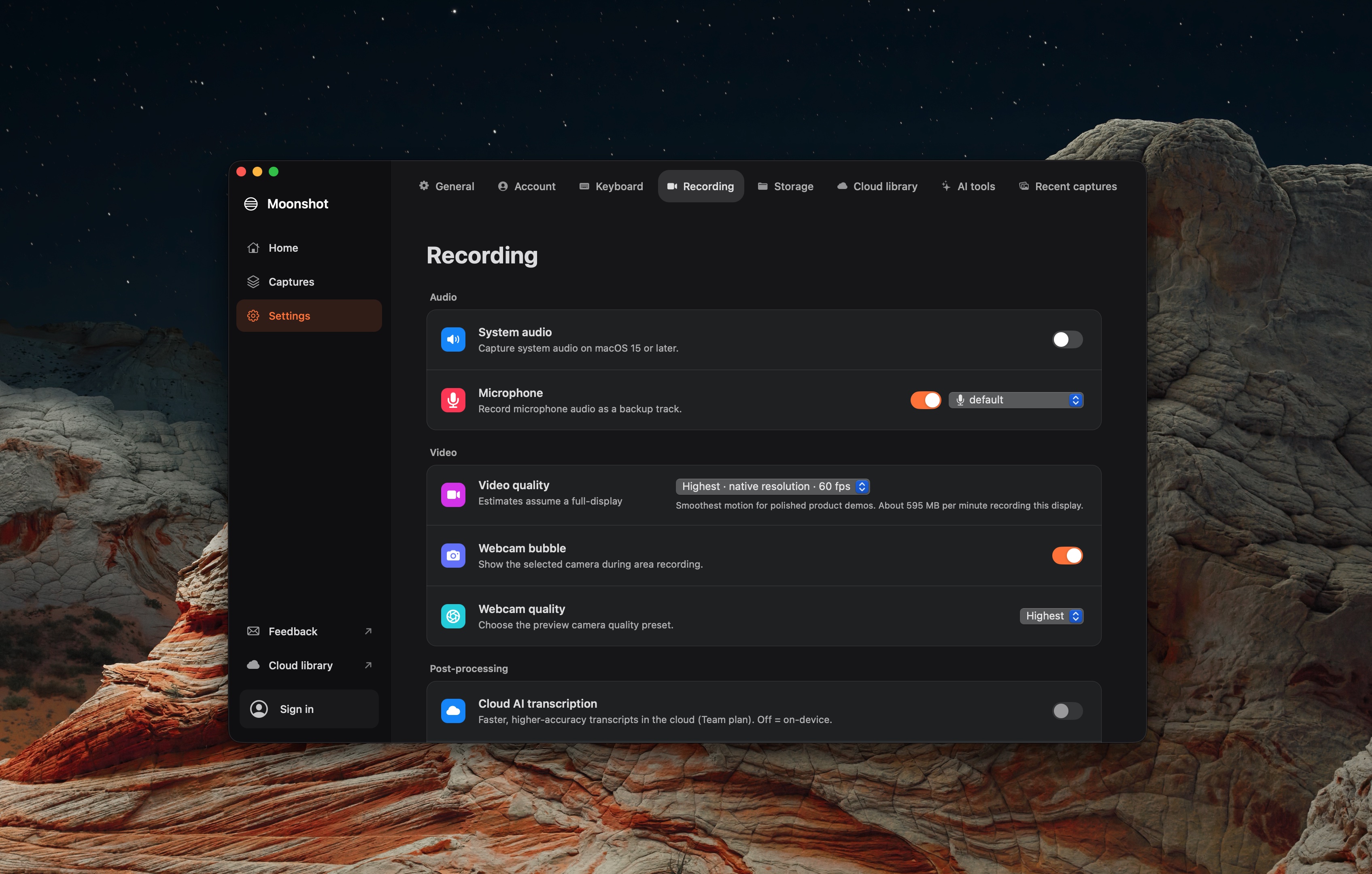
If it still fails
Keep the failed test and note the recorder version, macOS version, selected device and permission state. Send those details with a bug report. Do not assume the cause from a silent file alone.
For a fresh setup, use the Mac screen recording audio guide.