Framing
Keep the camera bubble clear of the controls you need to show.
Add your face to a walkthrough, tutorial or demo. Choose the camera and placement, then check your sound before you start.
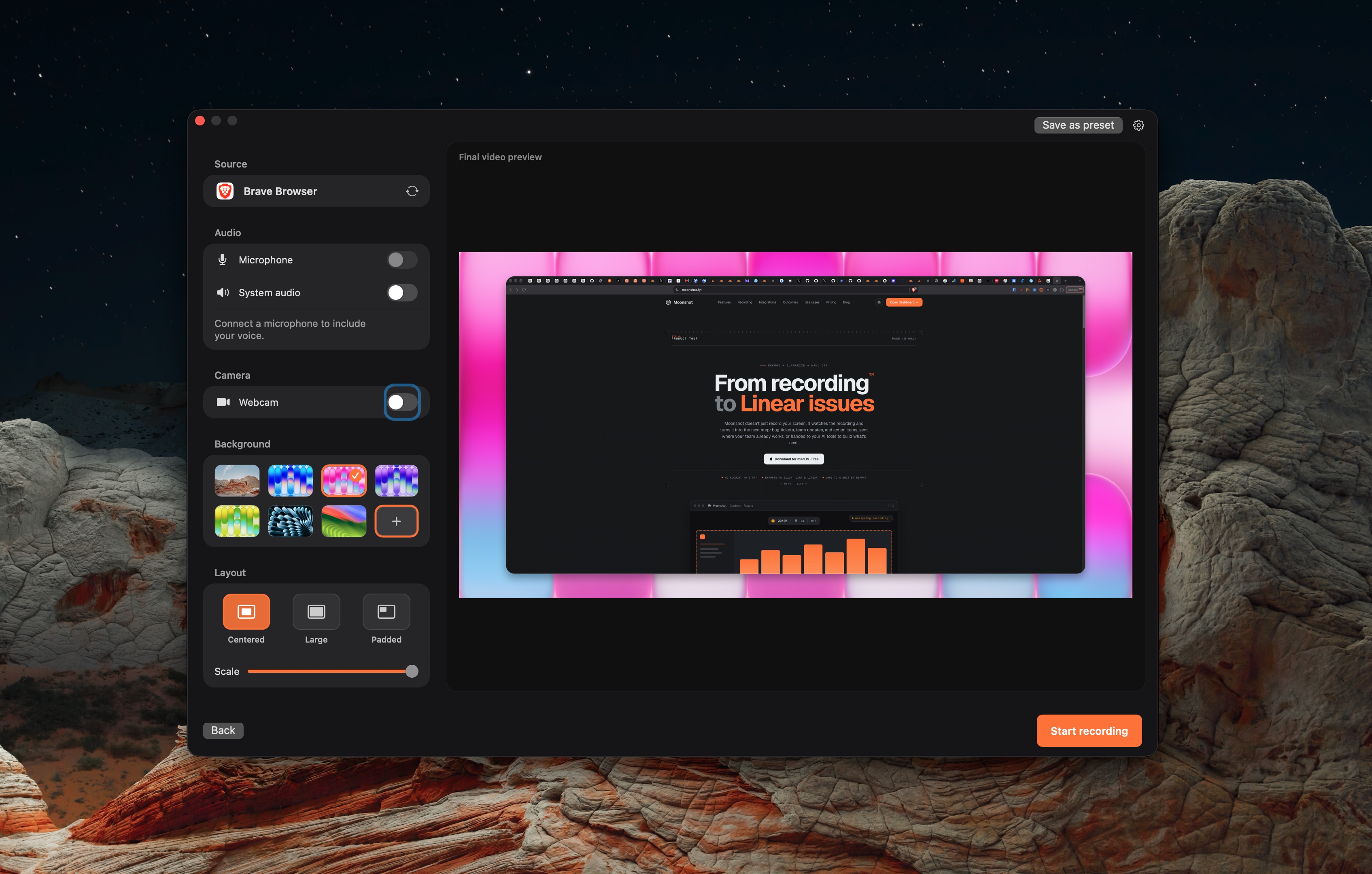
Pick a window, area or full-screen recording.
Choose the camera. Adjust the bubble position, shape and size in the recording controls.
Enable the microphone for narration. Enable system audio if the demo needs the app’s sound.
Keep the camera bubble clear of the controls you need to show.
Allow camera and microphone access in macOS Privacy & Security.
Check that the face, screen and narration are present in the saved recording.
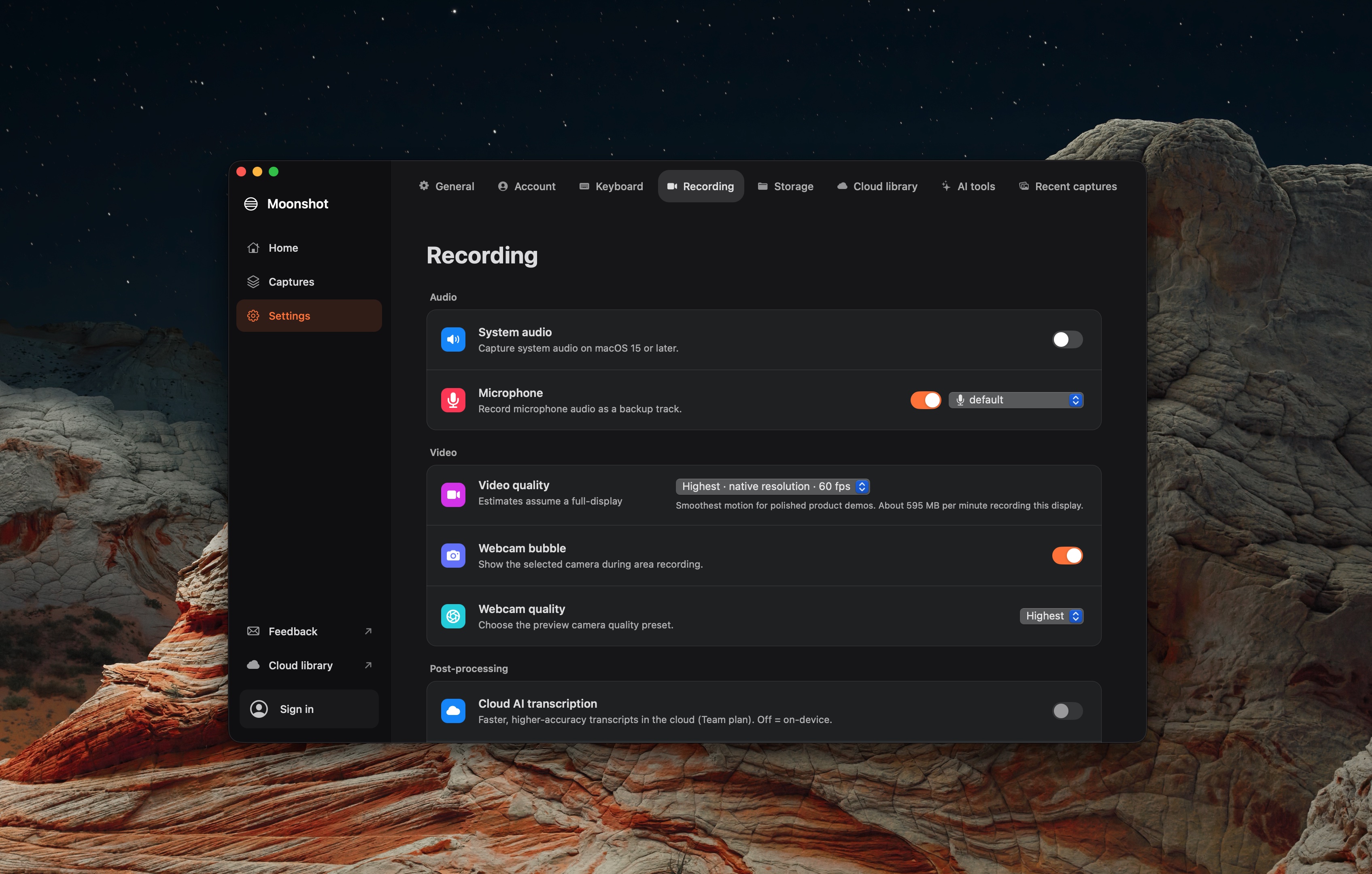
Treat the camera and microphone as separate inputs. Check both controls before recording.
Choose an available camera in the camera selector. A disconnected or unavailable device cannot record.
Moonshot records through its native Mac app. It is not an online browser recorder.